

Google Business Profile categories are the labels that tell Google what your business is, and your primary category does most of the work. Pick the most specific option that matches your main source of revenue, add a few secondary ones that are true, and skip anything you don’t actually do.
That one dropdown decides which searches you can show up for. A vague or wrong choice can quietly keep you out of the map results that bring in calls. Here’s how the rules work, how to pick between two close options, and how to edit yours safely.
What Google Business Profile Categories Are and What They Control
Categories describe what you are, not everything you sell
A category answers one question: what kind of business is this? A bakery that also sells coffee is a bakery. A plumber who installs water heaters is still a plumber. Your services, products and description cover everything else you offer; this label names your core identity.
This trips up a lot of owners. They try to turn every service into its own label and end up with a profile that reads like a hardware store catalog. Add specific offerings, like “Cabinet Refinishing” or “Epoxy Floors”, in the Services section and attributes, and keep this field for who you are.
Where categories show up: Maps, the Local Pack and profile features
Your main label appears right under your business name on Google Maps and in Search, so it’s often the first thing potential customers read. Google also uses it to decide which searches you’re relevant for, which makes it a basic piece of local SEO. If someone searches “emergency electrician” and nothing on your profile says electrician, you’re competing with one hand tied. Categories are only one piece, so it helps to see how Google Maps SEO for small businesses works as a whole.
The choice also unlocks features. Restaurants can add menus and reservation links, hotels get fields for amenities, and many service businesses see suggested services and attributes that fit their trade. Pick the wrong label and those options may never appear, which affects how customers act on your profile and the performance numbers you see later.
Why you can only choose from Google’s preset options
There’s no free-text box. You pick from Google’s own set of thousands of business categories and can’t invent a new one. If your exact trade isn’t there, take the closest match and explain the rest in your description and services. Fixed profile categories also keep you from stuffing keywords into a label.
Primary vs. Secondary Categories: The Rules and Limits
One primary category and up to nine secondary ones
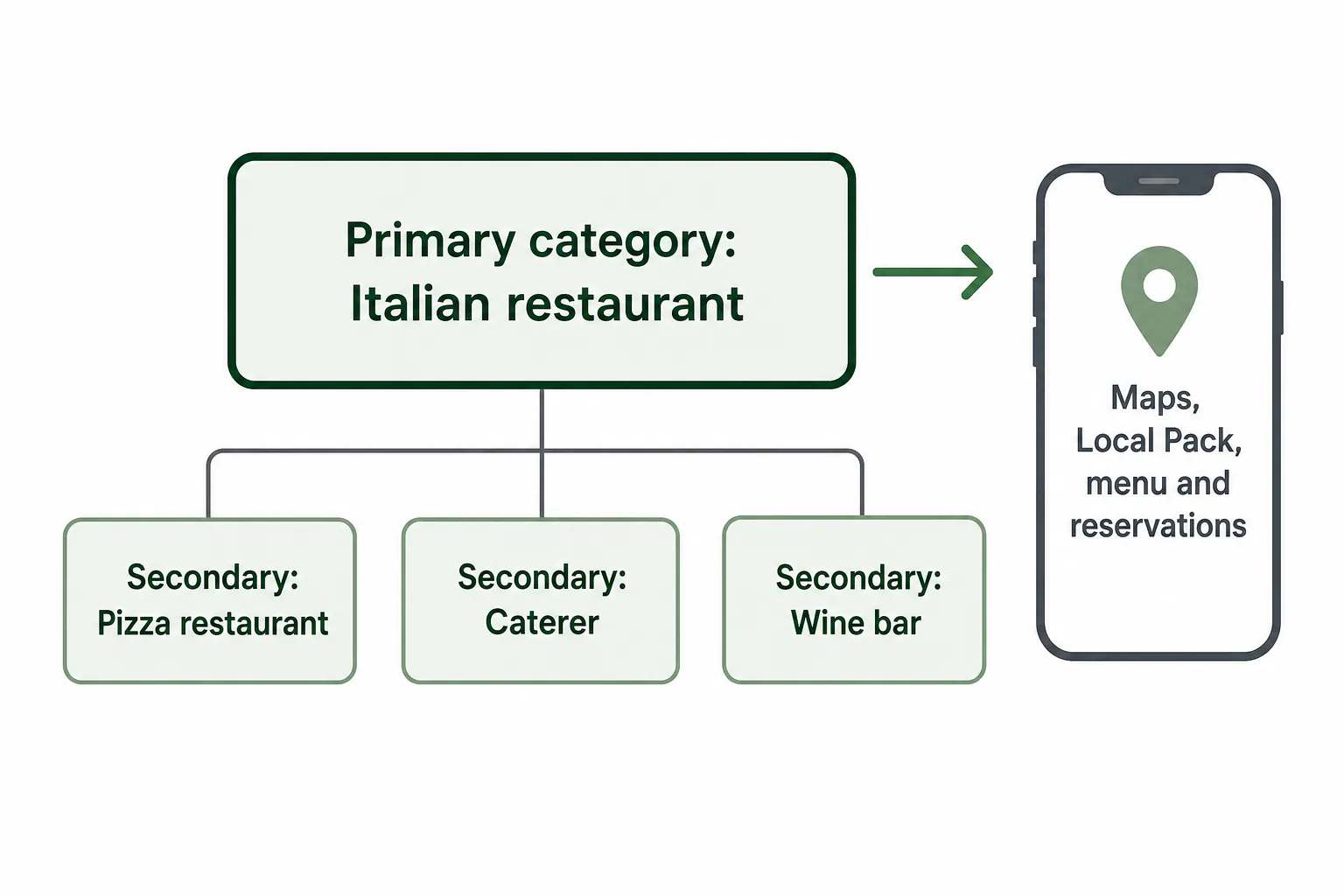
Every profile gets exactly one primary category and up to nine secondary categories, so ten in total. The primary one is required; the extras are optional. They cover real parts of your business the main label misses, like a pizza place that also runs catering.
Why the primary category carries the most weight
Google treats your main pick as the strongest signal of what you are. It shapes which features you get. Secondary ones help you appear for related searches and support your local search ranking, but if your primary choice is off, nine good extras won’t make up for it.
How many categories you should actually use
Use as many as are true, and no more. For most small businesses that’s a handful, not ten. Ten is a ceiling, not a target. Broader parent categories are implied, so a fish and chips restaurant doesn’t need “Restaurant” as a secondary.
Test each secondary option: would customers searching that term be happy to find you? A family dental office that takes same-day emergencies can add “Emergency dental service.” Adding “Orthodontist” for a few aligner cases blurs your profile, and those searchers will bounce.
How to Choose Your Primary Category When Two Options Compete
Start specific: “Italian restaurant” beats “Restaurant”
The more specific label almost always wins. Someone typing “Italian restaurant near me” has already decided what they want, and Google tends to favor profiles whose main label matches that exact idea. “Restaurant” is technically true, but it drops you into a giant pool where you’re relevant to everything and the best match for nothing.
The same goes for trades: “Roofing contractor” over “Contractor,” “Pediatric dentist” over “Dentist” if kids are truly your focus, “Mexican restaurant” over “Restaurant” for a taco spot in Barrio Logan.
A decision rule: pick the category tied to your top revenue or demand
Sometimes two narrow options both fit. A shop in Kearny Mesa could be an “Auto repair shop” or a “Brake shop.” Work through this rule in order:
- Choose the one that brings in the most revenue, or the most profitable jobs, over a normal year.
- If revenue is close, choose the one more local people search for. Type both into Google Maps for your area; a fuller, more crowded map usually signals more demand.
- If they’re still tied, choose the one where you can realistically compete. A field of thin, weak profiles is easier to break into.
- Put the runner-up in your secondary categories so you still show up for it.
Brakes might be the shop’s specialty, but if general repairs pay most of the bills, “Auto repair shop” goes first and “Brake shop” sits in a secondary slot.
Use competitor profiles and Google’s own suggestions as a check
Search your main service plus your city, say “brake repair Chula Vista,” and open the top map results. Each shows its main label under the business name. If the shops beating you share a label and yours differs, that’s a hint. Extensions such as GMB Everywhere can reveal competitors’ secondary labels.
Then type your trade into the category field itself. Google’s autocomplete shows the closest options, sometimes ones you didn’t know existed. Choosing by copying alone is a mistake, though: your pick should still match your own revenue and the performance you want, not just what the shop down the street went with.
How to Change or Add Categories on Your Profile, Step by Step
Step 1: Open your profile from Google Search or Maps while signed in
Sign in to the Google account that manages your profile, then search your business name or open Google Maps and tap your business. An editing panel appears above or beside your listing. If you don’t see it, you’re probably in the wrong account. Keep your verification materials handy, since an edit can trigger a new check.
Step 2: Select Edit profile and open the Business information tab
Click Edit profile. A window opens with several tabs, and the first one, Business information, holds the Business category section near the top. Click the pencil icon next to it.
Step 3: Change the primary category, then add secondary ones
In the primary category field, start typing and pick an option from the dropdown. Selecting from the suggestions matters, because Google won’t accept wording it doesn’t offer. Next, click Add another category for each secondary one, up to nine. Remove any that no longer fit with the X beside them.
Step 4: Save and check the profile for a review notice
Click Save. Edits often go through a review, so you may see a note that your update is under review. That’s normal and usually clears on its own. If Google asks you to verify again, often with a short video of your location or work, finish it promptly. Afterward, search for yourself to confirm the new label shows.
Check That a Category Still Exists Before You Trust an Old Source
Why old category sheets on blogs can mislead you
Google adds, renames, merges and retires business categories without much announcement. Plenty of SEO blogs still pass around an old category spreadsheet, and some entries no longer exist or have new names. An outdated file can send you hunting for an option that isn’t there.
How to confirm a category is available and spot renamed ones
The live dropdown in your own profile is the only source that’s always right. Here’s how to check it:
- Type the main word of your trade, like “remodel” or “dentist,” and scroll through every suggestion.
- Try synonyms and add words like “service,” “contractor” or “shop,” since labels often use wording you wouldn’t guess.
- Look at your public profile every few months. If a label you use was retired or renamed, a different one may show in its place, and you’ll want to pick the right replacement yourself.
If nothing fits, choose the closest real option and describe the rest in your services. That keeps your profile categories accurate even when your exact trade has no label of its own.
A Before-and-After Example: Swapping a Primary Category
The starting profile and the problem
Here’s an illustrative example: a made-up business with a common setup. A North Park remodeling company has “General contractor” as its primary and “Construction company” as a secondary. Most revenue comes from kitchen remodels. Its rankings look fine for “general contractor San Diego,” but those searches bring vague requests from customers wanting small jobs. For “kitchen remodel near me,” it rarely shows up.

The change and the search terms it targets
The owner swaps the main label to “Kitchen remodeler,” moves “Bathroom remodeler” and “General contractor” into the secondary slots, and drops “Construction company,” since they don’t build homes from the ground up. Nothing else on the profile is edited that week, so the effect is easy to read. The table shows the setup before and after.
| Before | After | |
|---|---|---|
| Primary | General contractor | Kitchen remodeler |
| Secondary | Construction company | Bathroom remodeler, General contractor |
| Searches it fits best | “general contractor near me,” “contractor San Diego” | “kitchen remodel near me,” “kitchen remodelers San Diego,” “bathroom remodel North Park” |
| Typical inquiry | Small repairs, mixed jobs | Full kitchen and bath projects |
Notice the owner removed a label instead of piling on more. Can adding more categories hurt your rankings? Adding ones that are true rarely does. Adding ones you don’t really offer can, because they blur your relevance, attract clicks that go nowhere, and break Google’s rule that your profile must represent the business accurately.
What to expect afterward: temporary shifts, re-verification and how to track them
Expect some bounce. After a category change, your position can drop or jump for a while as Google works out which searches you now fit. Don’t panic and don’t keep editing, because every new edit starts the process over. If a re-verification request appears, finish it right away.
To tell whether the swap was right, track it like this:
- Before editing, open your Performance report and write down last month’s calls, website clicks, direction requests and the search terms that found you.
- Note the date of the edit.
- Give it at least a few weeks, then compare the same numbers and check whether terms like “kitchen remodeler” now appear among your search terms.
- Search the target terms on your phone from a few neighborhoods to see where you land on the map.
Category Mistakes That Cost You Visibility
Going too broad or adding services you do not offer
Two mistakes cause most of the damage. The first is a broad main label picked to “cover everything,” like “Store” for a boutique or “Contractor” for a roofer. It keeps you out of narrow searches. The second is padding secondary slots with things you don’t do, like “Carpet cleaning service” for a house cleaner. You’ll draw wrong clicks, frustrated reviews and risk a suspension.

Service-area businesses and local pack effects in your city
If you hide your address and serve customers at their homes, labels work the same way, but distance still matters. Google weighs you from your verified location, not every ZIP code you add. A plumber in Escondido can add Pacific Beach and still rarely appear in the Local Pack there.
A narrower label can help, as long as the dropdown offers one that matches work you really do. Fewer competitors share it, so it may give that plumber a shot farther from home than plain “Plumber” would. Expect your strongest local visibility near your base and treat distant neighborhoods as a bonus.
When to review your categories again
Review them whenever your business shifts: a new service line, a dropped one, a move, or a seasonal swing in demand. Also check when a competitor jumps ahead, and at least twice a year to catch new or renamed options. Compare your Performance numbers while you’re in there.
If you’d rather not juggle this on top of running your business, our Google Business Listing expert service covers setup and optimization of profiles, and we explain every choice in plain language.
Frequently Asked Questions
How do I change the Google business category?
How do I change the Google business category?
Sign in to the Google account that manages your listing, then:
- Search your business name on Google or open it in Google Maps.
- Click Edit profile and open the Business information tab.
- Click the pencil next to Business category.
- Pick a new primary category from the dropdown and add secondary categories.
- Click Save and watch for a review notice.
Should my primary category be specific or broad?
Should my primary category be specific or broad?
Specific, as long as it’s accurate. A narrow main label matches the searches of people who already know what they want, and they’re usually the ones ready to call. Go broad only when no narrower option fits your work. “Family law attorney” beats “Lawyer” for a family law practice, while “Lawyer” suits a general practice that takes many kinds of cases.
How many Google business profiles can you manage?
How many Google business profiles can you manage?
One Google account can manage more than one listing, and you switch between them in Google Business Profile Manager. Businesses with many locations can group them there and use bulk tools. Each real location still needs its own verified listing, and Google’s guidelines don’t allow extra listings for the same spot just to show up for more searches.
Is Google Business Profile free?
Is Google Business Profile free?
Yes. Creating, verifying and managing a Google Business Profile costs nothing. You only pay if you choose to run Google Ads to promote it or hire someone to manage it for you. Be wary of calls claiming you must pay Google to stay listed or to “verify” your business; that’s a common scam aimed at small business owners.
What is a Google Business Profile called?
What is a Google Business Profile called?
Its official name is Google Business Profile. It used to be called Google My Business, so many people still say GMB, and some call it a Google Business Listing. All of these names mean the same free listing that shows your name, hours, reviews, photos and categories in Google Search and on Google Maps.