

A Google Business Profile setup takes about an hour. You sign in at business.google.com, add your business name, category, location and contact details, then verify. Verification is the step that actually puts you on Google Search and Google Maps.
A few early choices decide whether your profile goes live smoothly or gets stuck: which account you use, whether you show your address, and which category you pick. We’ll walk through them in order, in plain words, so you can finish in one sitting.
Before You Start: The Account, the Name and What to Have Ready
Before you create anything, settle three things: which Google Account will own the profile, whether a listing already exists, and where to log in. Then gather these so you don’t stop halfway:
- Your business name exactly as it appears on your sign, license and invoices
- Your street address, or the towns and ZIP codes you serve
- A phone number that someone actually answers
- Your website address
- Your regular hours
- One proof document, such as a business license or a utility bill in the business name
Keep your NAP (name, address, phone) identical everywhere: on your website, your social profiles and other directory listings. Mismatched details are a common reason profiles stall.
Use a dedicated Google Account you control
Create a Google Account just for the business, ideally tied to your business email, and keep the password yourself. Don’t use an employee’s personal Gmail or your web designer’s account. If that person leaves, your listing can leave with them. You can add managers later without handing over ownership.
Search for an existing listing first to avoid duplicates
Google often creates a basic listing on its own. Search your business name on Google Maps, then your phone number. If you see “Own this business?” or “Claim this business,” claim that one. If someone else already manages it, request access from the same screen. A second profile only causes trouble.
Google My Business is now Google Business Profile: what changed and where to log in
It’s the same product with a new name. Google renamed Google My Business to Google Business Profile and retired the separate My Business app. Now you edit your listing right from Google Search or the Maps app. Your old login still works: same Google Account, same address, business.google.com, where you’ll find the Google Business Profile Manager dashboard.
Google Business Profile Setup in Order: From Name to Contact Details
Here’s how to create a Google Business Profile from start to finish:
- Sign in at business.google.com with your dedicated Google Account.
- Search your business name, and claim the listing if one already exists.
- If none exists, click “Add your business to Google” and enter the exact name.
- Pick your primary category.
- Add your address or service areas, phone, website and hours.
- Complete verification so the profile goes live on Search and Maps.
This order is really the answer to how to get found on Google Maps. Of the local searches people run to find a business, 70% happen on Google Maps.
Step 1: Enter your business name exactly as it appears on your sign and records
Type the real name and nothing else. “Mission Hills Pet Spa” is right. “Mission Hills Pet Spa | Best Dog Grooming San Diego” is a stuffed name, and stuffed names are a common reason new profiles get suspended.
Step 2: Pick the primary category that matches your main service
Your primary category tells Google which searches you belong in, so pick the most specific match. A taqueria should choose “Mexican restaurant,” not just “Restaurant.” Start typing and choose from Google’s list, because you can’t invent categories. You can add secondary categories later for side services.
Step 3: Add your location, service areas, phone, website and hours
Enter your address (the next section helps you decide whether to show it), a local phone number and your website. Set business hours you actually keep. Then add special hours for holidays like Thanksgiving, so nobody drives over to a locked door.
Storefront or Service-Area Business? A Decision Rule
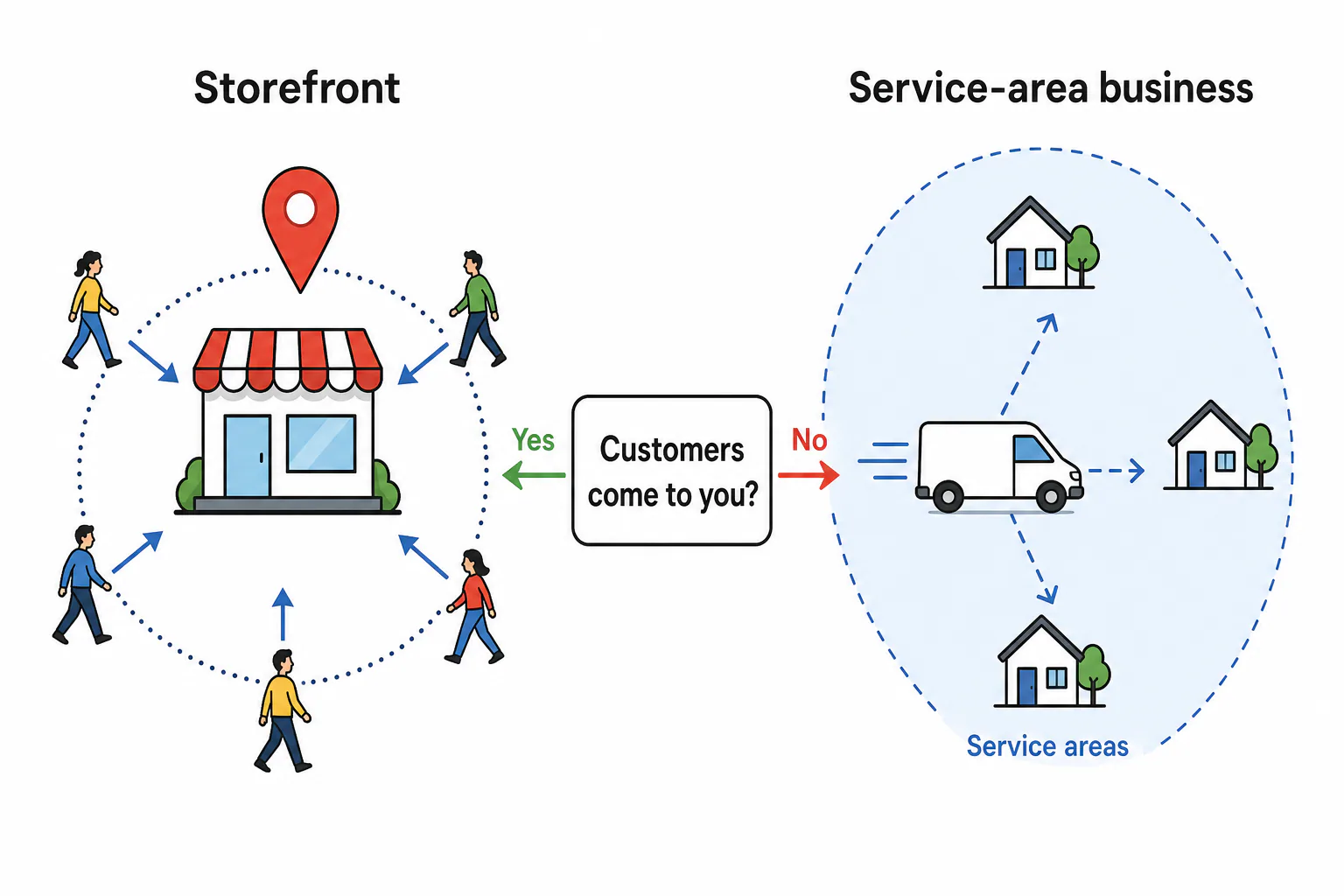
The rule is simple. Show your address only if customers come to you at a staffed location during your listed hours. Hide it if you go to them. If you do both, show the address and add service areas too.
| Your business | Setup | Address shown? |
|---|---|---|
| Salon, café, retail shop, dental office | Storefront | Yes |
| Auto shop that also offers mobile repair | Storefront plus service areas | Yes |
| Plumber, house cleaner, mobile detailer, home-based tutor who travels | Service-area business | No |
When to show your address
Show your storefront address when there’s signage, staff on site during posted hours, and customers walk in. That puts a pin on the map, and people can tap for directions.
When to hide it (home-based and mobile businesses)
If you work from home or drive to customers, set yourself up as a service-area business. You still enter your address so Google can verify you, but you hide it from the public profile and list the cities or ZIP codes you serve. Showing a home address where you don’t receive customers breaks Google’s rules and puts your home on the map.
How hiding the address affects where you appear
You still appear in Search and Maps, just without a pin. Google still knows where you’re based, so listing far-off towns as service areas won’t make you rank there. And skip the virtual office or PO box: it’s a fast route to suspension.
Verification: Methods, Delays and What to Do When No Option Appears
Verification proves to Google that you run the business at the place you claim. You don’t get to pick freely: Google offers one or more methods based on your business type and details.
Phone, email, postcard and video verification compared
| Method | How it works | What trips people up |
|---|---|---|
| Phone or text | A code arrives at your business number | Call menus or forwarding that block the automated call |
| A code arrives at your business email | Checking the wrong inbox or the spam folder | |
| Postcard verification | A code is mailed to your address | Mail delays, and editing your info while you wait |
| Video verification | You record one continuous video showing your location and proof you run it | Cutting the recording, or showing no signage or tools |
Your profile is not live until verification is finished
Until you verify, customers can’t see your edits on Search or Maps, even if your dashboard looks complete. Don’t announce your listing or send people to it yet.
Stuck on a postcard or no method offered: next steps
- Don’t change your name, address or category while you wait. Edits can reset the process.
- Check for a shared mailbox, a front desk or a suite number missing from your address.
- Request a new code only after the first one clearly hasn’t arrived.
- If no method appears, double-check that your name and address match your records, then sign out and back in.
- For video, film in one take: the street and your signage, then the inside, then proof you’re in charge, such as unlocking the door or showing tools and your business paperwork.
- Still stuck? Contact Google through the Business Profile help center and keep your proof documents ready.
If Google says another user has already verified your listing, request access from the listing, or request ownership if you’re the real owner. Some guides also suggest verifying your website in Google Search Console to support verification.

Your First-Day Checklist: What to Fill In During One Session
Split your one-hour session into two blocks. Accuracy comes first, then the parts that make customers choose you.
The first 30 minutes: essentials that must be accurate
- Business name, matching your sign
- Primary category, the most specific match you can find in Google’s list
- Storefront address or service areas
- Phone number and website
- Regular hours, plus holiday hours
- Start verification, then note which method Google offered you
The next 30 minutes: photos, services and description
- Photos: your logo, a cover photo, the outside of your location (so people recognize it), the inside, your team at work, and finished jobs
- Services or products: list each one with a one-line plain description
- Special attributes: in the info tab, select the features that fit your category, like wheelchair accessible or free Wi-Fi
- Description: what you do, who you serve and where, in a few short sentences, with no links or sales claims
After launch: reviews, replies and Posts
Once you’re verified, copy your review link and send it to recent happy customers. Reply to every review, the bad ones too, politely and briefly. Use Google Posts for offers, events and seasonal news. One Post a week is a habit most owners can keep.

When Setup Goes Wrong: Suspensions and Duplicate Listings
Most problems after a Google Business Profile setup come from small mismatches that Google’s systems read as a red flag. The good news: most can be fixed.
Why Google suspends new profiles even when you followed the steps
New profiles get extra scrutiny. Common triggers: keywords in the name, a virtual office or coworking address, a public home address, a name that doesn’t match your website or signage, and many edits right after verification. Fix the mismatch first, then appeal through Google’s Business Profile help pages with your license, a utility bill, and photos of your signage or work vehicle.
Merging or removing a duplicate
If you own both listings, keep the verified one and report the other as a duplicate through “Suggest an edit” on Maps. When someone else controls a listing for your business, request ownership from that listing. Still stuck? Contact Business Profile support and include links to both listings.
Do it yourself or get help? Where a San Diego agency fits
If you have an hour and a clean situation, DIY works fine. Get help if you’re suspended, fighting duplicates, or just don’t want another tool to learn. Our Google Business Listing expert service covers setup and optimization. Our SEO Marketing plan adds geomarketing and local directory placement, all with white hat techniques. Local San Diego Painting consistently makes the top 3 in the Google listings. Results vary, and nobody can promise rankings. For paid visibility, we handle Google Ads management for San Diego businesses and social media campaigns. With 30 years online, we’ll explain each step in plain language.
Frequently Asked Questions
Is Google Business Profile free?
Is Google Business Profile free?
Yes. Creating, verifying and managing a Google Business Profile costs nothing. Google Ads are a separate, paid product, and you don’t need them to have a listing. Be wary of callers who claim you must pay Google to verify or “keep” your listing. Google doesn’t charge for that, and those calls are usually scams.
How long does Google Business Profile verification take?
How long does Google Business Profile verification take?
It depends on the method Google offers you. Phone, text and email codes can arrive quickly. Postcard verification depends on mail delivery, and video verification needs a review before approval. Google doesn’t promise a fixed timeline, so avoid editing your profile while you wait. Edits can restart the review.
How do I sign in to my Google Business Profile?
How do I sign in to my Google Business Profile?
Go to business.google.com and sign in with the Google Account that owns the profile. You can also search your business name on Google while signed in to that account, and the editing tools appear right on the results page. If you can’t get in, check whether the profile was set up under a different account, such as an old employee’s.
What is the difference between Google My Business and Google Business Profile?
What is the difference between Google My Business and Google Business Profile?
There’s no real difference: Google My Business is the old name. Google renamed it Google Business Profile, retired the separate app and moved most editing into Search and Maps. Your existing listing, reviews and login carried over. That’s why you’ll still see both names online.
How do I add my business to Google Maps?
How do I add my business to Google Maps?
Create and verify a Google Business Profile. That’s how a business gets added to Google Maps. Storefronts get a pin at their address. Service-area businesses appear in results for the areas they serve, without a public pin. After verification, it can take some time before every change shows up across Maps.